
Client search
This page has guides for finding and adding clients using NHI in the STL app.
To better protect client privacy, you now need to enter a client's NHI before their details can be displayed in the Short-Term Loan system. This applies when adding requests, viewing clients, and viewing client history.
Jump to each set of instructions using the ‘On this page’ section.
Quick tips for using the search
- Enter the client's NHI before searching for client information.
- Do not press Enter after entering an NHI when creating a request.
- Use + Add New if the client is not already in the system.
- You can search for clients and their history directly by NHI.
Add a new request
-
1
Open Add Request
On the View Requests screen, click the + button to create a new request. A Check NHI section will appear.
-
2
Enter the client's NHI
Type the client's NHI into the NHI field.
Important: Do not press Enter after entering the NHI. This will generate an error because the system will try to save the request.
-
3
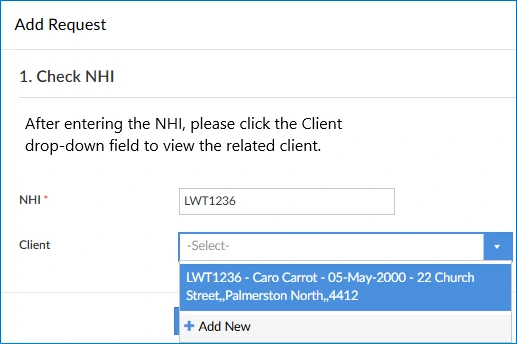
Select the client
Click the Client drop-down list.
If the client is already recorded in the Short-Term Loan system, their details will appear for you to select.
-
4
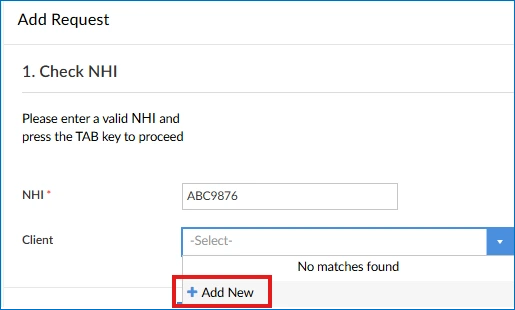
Add a new client (if needed)
If no client is found and you have entered the correct NHI, select + Add New to create a new client record.
-
5
Correct an NHI if required
If you enter the wrong NHI, remove it and enter the correct NHI to search again.
-
Finished!
View clients and their history
-
1
Search using NHI
In the View Clients screen, enter the client's NHI in the Search section and click Search (or press Enter).
-
2
View client information
If the client is already in the Short-Term Loan system, their details will appear in the results.

-
3
Edit or review details
From the results, you can:
Edit the client's details
View their equipment history
-
Finished!