
Multi-factor authentication for Short Term Loan
Use this guide to set up Multi-Factor Authentication (MFA) for the Short Term Loan app. You do not need to reset your password. Follow the steps in order and keep your phone with you during setup.
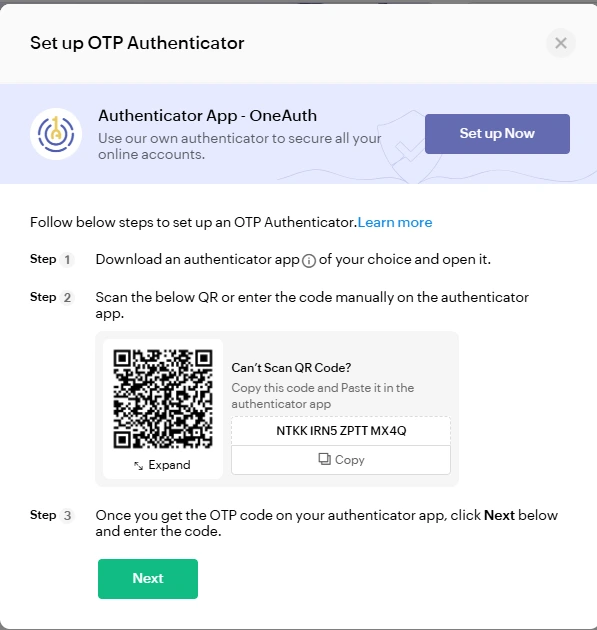
When asked to choose an authenticator method, we recommend that you use Microsoft Authenticator and ignore OneAuth.
After setting up multi-factor authentication, you will be asked to enter a code each time you login. This code will be displayed in your Authenticator app.
Setting up MFA for the Short Term Loan app
These instructions will be accurate after the MFA launch on Tuesday 21 July.
-
1
Install an Authenticator app
Download an authenticator app on your phone.
-
Enable NZ and Health NZ recommend you download the Microsoft Authenticator app, and use that app for this MFA.
If you are using Android, click here: Google Play Store Microsoft Authenticator App
If you are using an iPhone, click here: Apple MS Authenticator App
-
2
Log in to STL
Open the STL app and enter your usual login details.
-
3
QR code displayed
You will be presented with a QR code. Follow the setup steps below depending on whether you are logging in from a computer or from your phone.
-
4
Add the code to your Authenticator app
If you are logging into STL from your computer/laptop:
Scan the QR code using your Authenticator app.
Open the Microsoft Authenticator app, select the QR code scan button, and point your mobile camera at the QR code on your screen.
If you are logging into STL from your phone:
Copy the 'secret key' from STL and paste into your Authenticator app.
Select the 'Copy' link under the QR code shown.
Then open Microsoft Authenticator and follow these steps:
Select the + button near the top of the app.
Select Other account.
In the Name field, enter Short Term Laon.
Press and hold on the Secret key field, then tap Paste.
Select Add.
-
5
Confirm setup
Follow the remaining steps, guided by the STL app.
-
Finished!
Troubleshooting
- If you have trouble scanning the QR code, make sure Microsoft Authenticator is installed and open on your phone, and that your camera is working.
- Ignore the option to set up OneAuth.
- If setup still does not complete or you’re having issues, contact the Enable NZ support team.