
MRES notes
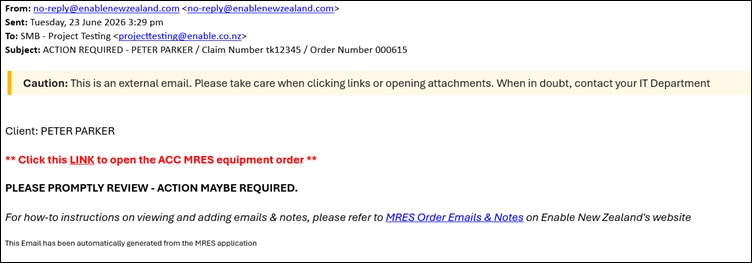
The MRES app automatically sends a generic email with a link to an order when a note has been added for you to read. You can also add notes to MRES orders for others to read.
Below is an example of email you will receive when a note is added and action is required from you:
Assessors can only see the notes they have created and notes specifically addressed to them.
ACC can see notes they have created and notes between Enable NZ and Assessors.
Notes can only be added to active orders. They cannot be added to draft or completed orders.
Instructions are below for how to view notes, and how to add a note for someone else.
View a note
Instructions to view a note assigned to you in MRES
-
1
Access MRES
You can click the link in the email or log into the MRES app at mres.enable.co.nz.
-
2
Find the notes
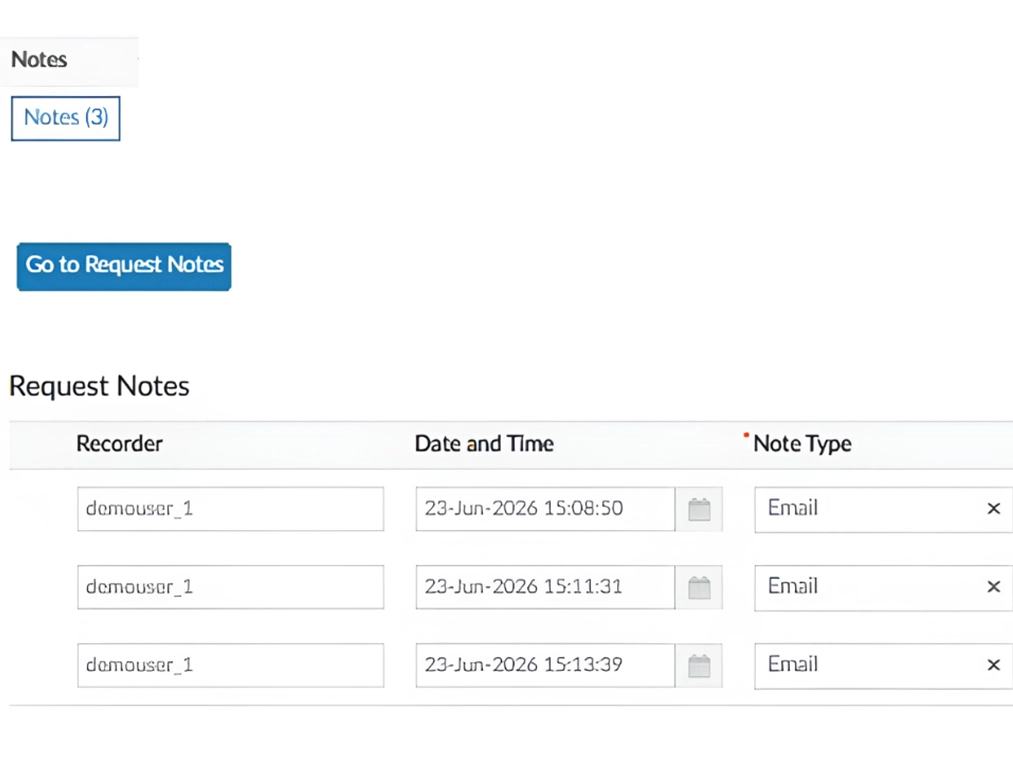
Access the order this note is for, then select the 'Notes' or ‘Go to Request Notes’ button. This will open a pop-up. The number beside the note button will display the number of notes on the order.
-
3
View the notes
In the pop-up, select 'Request Notes Summary'. This will display the message for you, the date and time the note was added, and who wrote the note (the 'recorder').
-
Finished!
Add a note
Instructions to create a note in MRES and notify someone that it's been created.
-
1
Access MRES
Log into the MRES app at mres.enable.co.nz and find the order you want to add a note to.
-
2
Find the notes
In the order, select the 'Notes' or ‘Go to Request Notes’ button. This will open a pop-up. The number beside the note button will display the number of notes on the order.
-
3
Create a note
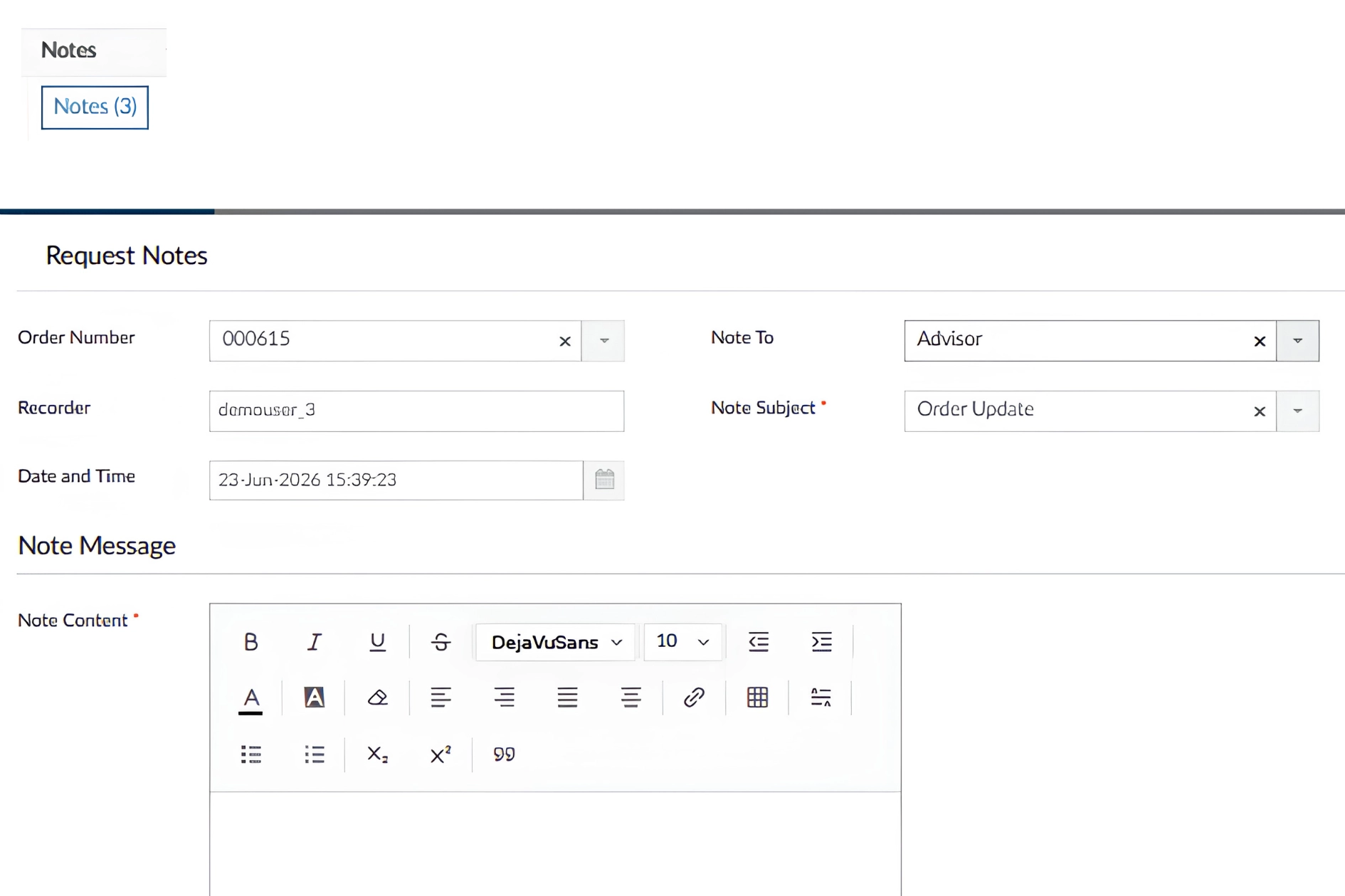
In the pop-up, select the + (plus) button. This will open another pop-up where you can write your note.

-
4
Select recipient and subject
Select a subject in the 'Note Subject dropdown, then select who you want to receive the notification in the 'Note To' dropdown. Below is a table showing who these notifications can go to.
Note To options
Who
Advisor
Clinical Services Advisor at Enable NZ - for clinical advice/review of MRES orders
Assessor
The Allied health professionals who submit MRES orders
CSF Enable NZ
Customer Service Facilitator who assist with processing of MRES order at Enable NZ
ACC
Enable NZ use only
Procurement
Enable NZ use only
W/House HM
Enable NZ use only - please do not expect a response
W/House PN
Enable NZ use only
W/House CH
Enable NZ use only - please do not expect a response
ACC Staff
Enable NZ use only
-
5
Write your message
Add your message in the 'Note Content' box. Screenshots, images, and files are not able to be uploaded in the Request Notes form. However, you can use URL links to reference documents
-
6
Save and send your note
Select ‘update’ to save the note. You cannot edit notes once added, so ensure you have the correct information before saving. The person you selected will receive an email notification of this note.
-
Finished!