
Managing ACC Approvals
When to use
Use this procedure when reviewing an order and line items.
Before you start
You must have an ACC MRES account. Request an MRES account for ACC Staff.
You must be logged in to the ACC MRES app to access orders. View the guide ‘How to access the MRES app’.
Only authorised users can review orders.
Accessing orders from an MRES ACC Review email

To access an order from an Enable NZ MRES ACC Review email, select the MRES App link in the body of the email.
This will open the MRES app and display the ACC Review screen for that order.
The order number and claim number are displayed in the email header.
Alternatively, you can access an order from the Claim Number Search screen in the MRES app.
Accessing orders using Claim Number Search
-
1
Search by claim number
On the Claim Number Search screen, enter the ACC claim number in the Enter Claim Number field, then select Search. The View Orders ACC Review screen will display the order(s) for that claim.

-
2
Select the order to review
Select Review beside the required order.

-
3
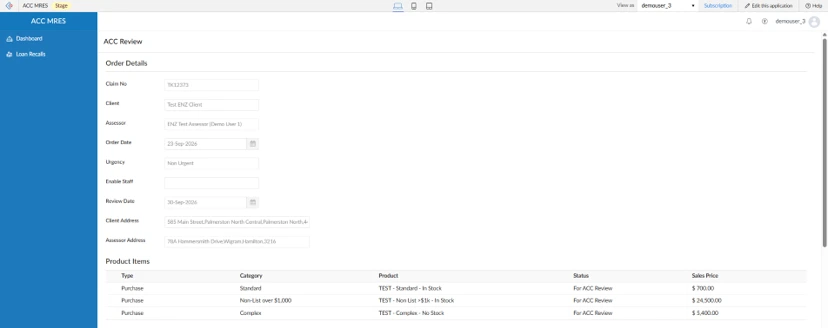
The ACC Review screen displays
The ACC Review screen contains sections for order details, product items, review items, request notes and order attachments.
-
Finished!
Reviewing orders
The ACC Review screen contains sections for order details, product items, review items, request notes and order attachments.
The Product Items section lists all line items in the order. Line items that require an ACC decision also appear in the Review Items section. The list will also contain any substituted items.

The Status field for each item will display one of the following:
For ACC Review - These items require an ACC review and are in the Review Item section.
Dispatch Order Created – Items dispatched from an Enable NZ warehouse (New stock and reissued items)
Purchase Order Created – Items purchased from directly from equipment suppliers.
Hire Order Created – Items hired from directly from equipment suppliers.
Request Notes
The Enable NZ Clinical Advisory Team may provide expert equipment clinical advice for the order. ACC Recovery Teams can also request guidance from the Enable NZ Clinical Advisory Team. This guidance is found in the Request Notes screen, along with any other Enable NZ / ACC communications.
To view any previous or current communications, select the ‘Go to Request Notes’ button and review any communications/advice before reviewing individual equipment items.

You must read and acknowledge each request note with the subject 'Clinical Review Narrative'.
If you require clinical advice from Enable NZ, update the Orders Review Status to ‘Clinical Advice Required’. You must then create a request note detailing your request. View the guide ‘MRES notes’ for more information.
Viewing attachments
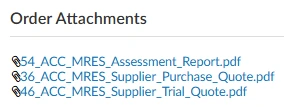
Under ‘Order Attachments’, select each attachment that is relevant to the review, then download and open it.
Reviewing items
-
1
View all fields and controls
In the Review Items section, hover the cursor on the bottom of the bottom line to reveal the scroll bar.
Scroll to the right to view all fields and locate the item controls.

-
2
Open Review Item screen
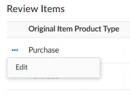
For the item you want to review, move the pointer to the far right of the item row to display the ellipsis (…) icon.
Select the ellipsis (…), then select Edit.
The Review Item screen will then display.
-
3
View the information
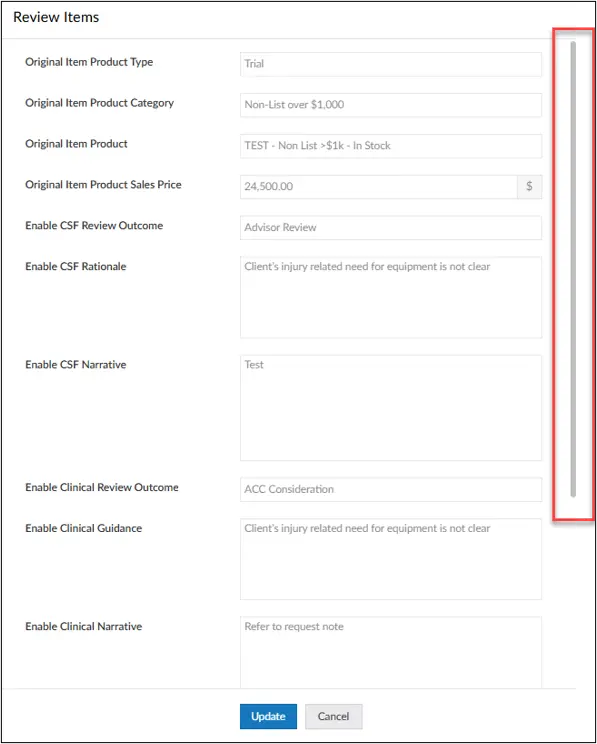
Review the original item details, any substituted item details (see the 'Substituted Items' section further down this page for more info), and the Enable NZ review information.
You will need to scroll down to see all the fields in this screen.
-
4
Complete the ACC Review fields
Complete the ACC Review fields for the item. You will need to scroll down to see all the fields in this screen.
Field name
What to do
ACC Review Status
Click the dropdown arrow and select either:
Approved
Declined
Clinical Advice Required
ACC Review Rationale
(Mandatory field if the item is not Approved)
Click the dropdown arrow and select the appropriate rationale.
ACC Review Narrative
(Mandatory field if the item is not Approved)
Enter a brief narrative if the item is not Approved.
If a request note has been created to document the narrative, enter Refer to request note.
Note: This field has a 255-character limit.If you do not agree with an item substitution or require clinical advice from Enable NZ, select Clinical Advice Required and the order will go to the Enable NZ Clinical Advice team.
You must create a request note detailing the information you require from the Clinical Advisors.
-
5
Save or cancel your changes
Select one of the following:
Update – saves the item review and returns you to the ACC Review screen.
Cancel – discards changes made on the Review Item screen and returns you to the ACC Review screen.
-
6
Repeat for each item
Repeat these steps for every item in the Review Items section.
-
Finished!
Substituted items
The Enable NZ clinical advisor may substitute an item with an alternative. When this occurs, the Original and Substituted items are displayed in the Product Items section and on the same row in the Review Items section.
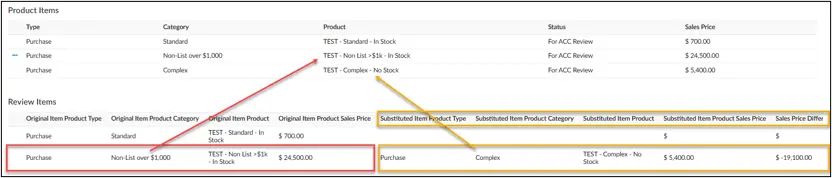
The advisor will create a request note explaining their decision, including if the Assessor who placed the order has notified/agreed with the substitution.
The Review Item screen displays the original item details first (highlighted in green in the below image), then the substituted item details (highlighted in red in the below image).
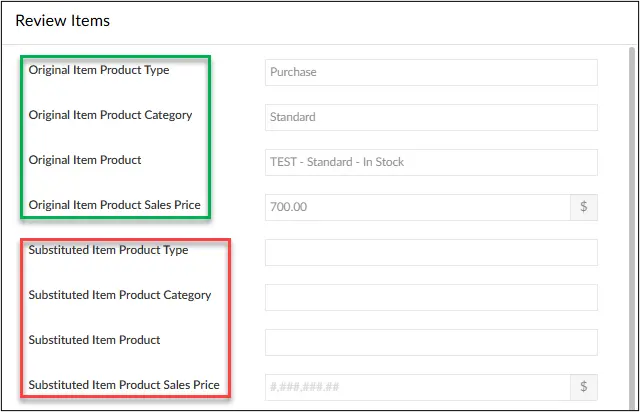
Due to software platform constraints, if one item within an order has been substituted, the substitution-related fields will be visible for all items in the order. Blank fields indicate that no substitution has been made for that specific item.
Written guidance sought

If ACC needs to seek internal written guidance or a further assessment before making a decision, select Written Guidance Sought to keep the order on hold.
Non-list trial equipment belongs to the business that supplied it for trial and cannot remain with the client while ACC considers a post-trial purchase request.
ACC must either purchase the equipment so it can remain with the client and later be recalled to the equipment loan pool or arrange for it to be collected and returned to the Equipment Supplier in ‘as new’ condition until ACC makes a decision.
Cancel your review
You can cancel the order review and remove any changes you made.
-
1
Select the cancel button
To leave without saving the overall review, select the grey Cancel button.
-
2
Confirm your cancellation
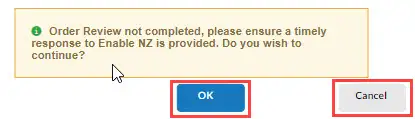
The warning message “Order Review not completed, please ensure a timely response to Enable NZ is provided. Do you wish to continue?” will display. In the warning message pop-up:
Select 'OK' to continue with cancellation and not save your review.
Select 'Cancel' to return to the ACC Review screen and continue your review.
-
3
Review is cancelled
If you select 'OK', your review is not saved and you will be returned to the Claim Number Search screen.
-
Finished!
Save your review
You can save your order review and return to it later.
-
1
Select the save button
To save the incomplete review and return to it later, select the green Save button.
-
2
Confirm you want to save
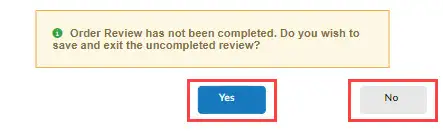
The warning message “Order Review has not been completed. Do you wish to save and exist the uncompleted review?” will display. In the warning message pop-up:
Select 'Yes' to save and exit the incomplete review.
Select 'No' to return to the ACC Review screen and continue your review.
-
3
Review is saved
If you select 'Yes' your review is saved and available to work on later. You will be returned to the Claim Number Search screen.
-
Finished!
Submit your review
Submit your review for processing when it's complete.
-
1
Select the submit button
After all required item reviews are complete, select the blue Submit button.
-
2
Review is submitted for processing
The order is saved for onward processing. You will be returned to the Claim Number Search screen.
-
Finished!